See what your Spire runs are telling you
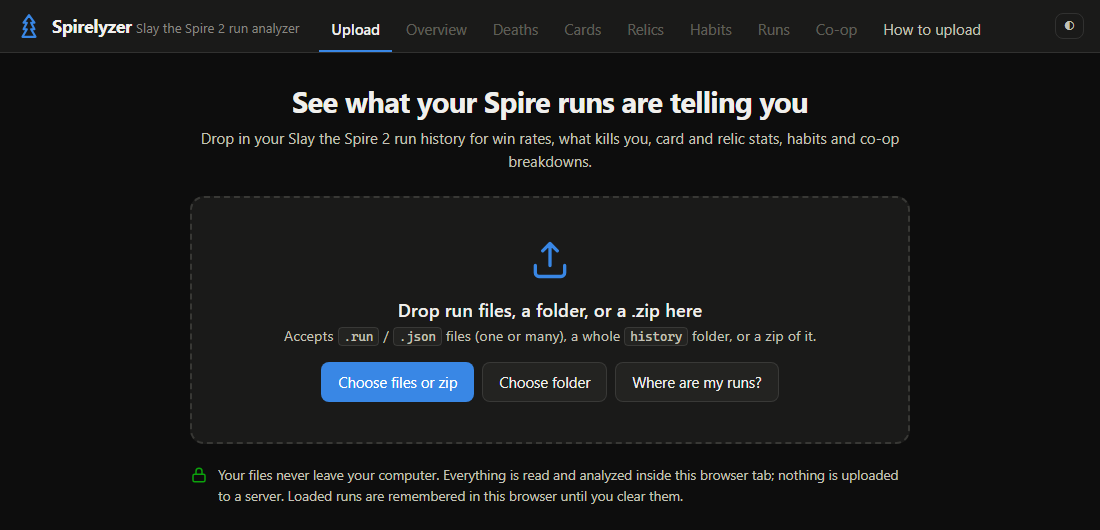
Drop in your Slay the Spire 2 run history for win rates, what kills you, card and relic stats, habits and co-op breakdowns.
Drop run files, a folder, or a .zip here
Accepts .run / .json files (one or many), a whole history folder, or a zip of it.
How to load your run history
Slay the Spire 2 saves a file for every finished run. Here's how to find them and get them into Spirelyzer. It takes about a minute.
Open the Run dialog
Press Win + R, paste this path and press Enter:
%APPDATA%\SlayTheSpire2\steam 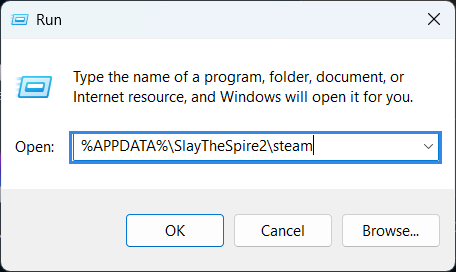
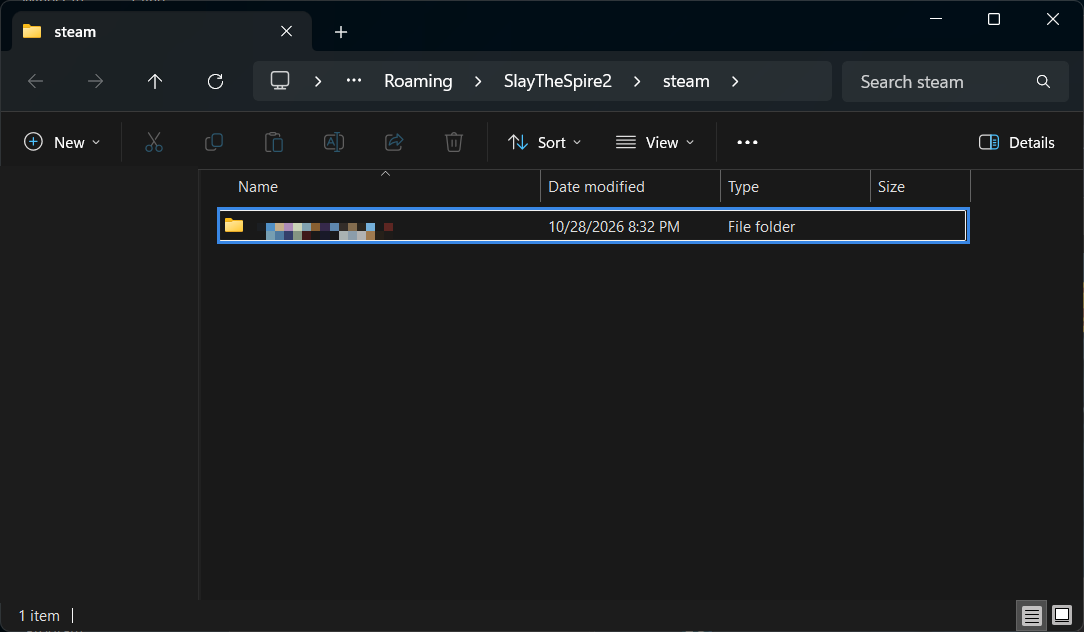
Open your Steam ID folder
File Explorer opens on a folder containing one folder named with a long number. That's your Steam ID. Open it.
Go to profile1\saves\history
Open profile1, then saves, then history. You'll see one .run file per finished run. If you play on another in-game profile, use profile2 or profile3 instead. Modded runs live under modded\profile1\saves\history.
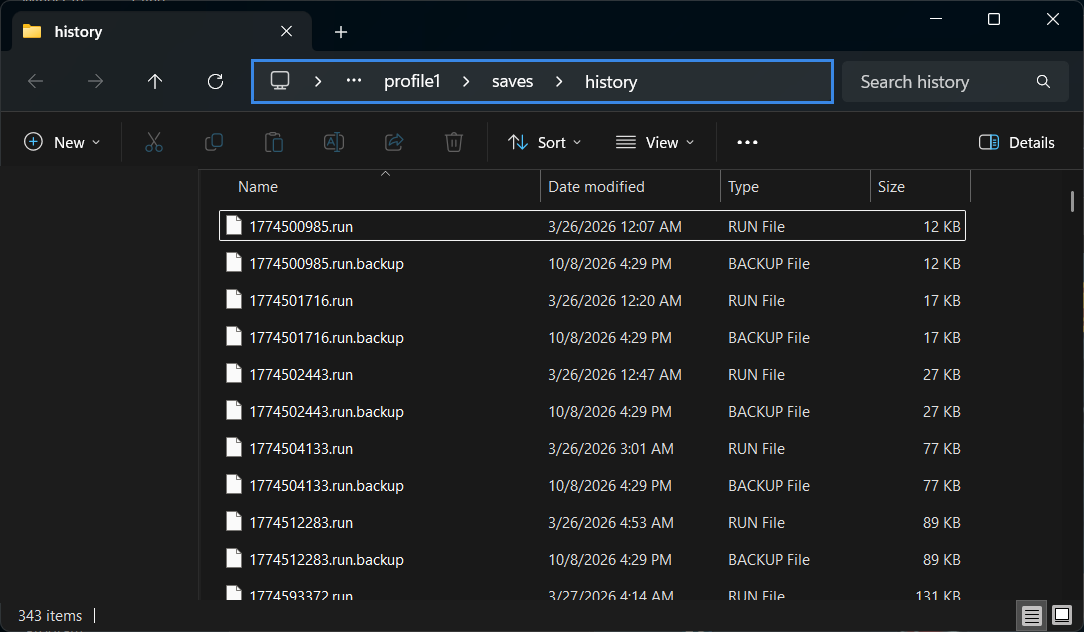
history folder. The .backup files are ignored automatically.Load them into Spirelyzer
Pick whichever is easiest:
- Drag the whole
historyfolder onto the drop zone. - Select the files with Ctrl + A and drag them in, or use Choose files.
- Zip them: right-click the
historyfolder → Compress to ZIP file (Windows 11) or Send to → Compressed (zipped) folder, then drop the zip in. This is handy for sending your runs to a friend.
Explore
Use the tabs across the top. The filter bar narrows every view by character, ascension, solo/co-op, date and game version. Come back after more runs and drop the folder in again; runs you've already loaded are skipped.
Other platforms
| Platform | Run history location |
|---|---|
| Windows | %APPDATA%\SlayTheSpire2\steam\<steam id>\profile1\saves\history |
| macOS | ~/Library/Application Support/SlayTheSpire2/steam/<steam id>/profile1/saves/history |
| Linux / Steam Deck (Proton) | ~/.local/share/Steam/steamapps/compatdata/<app id>/pfx/drive_c/users/steamuser/AppData/Roaming/SlayTheSpire2/steam/<steam id>/profile1/saves/history |
macOS and Linux paths follow the game's usual conventions but haven't been verified; if yours differs, search your drive for a folder named SlayTheSpire2. On macOS, press Cmd + Shift + G in Finder to paste a path.
Good to know
- Co-op runs: each player's own files include everyone's stats. Spirelyzer detects which player is you (the one in every co-op run) and analyzes from your seat; change it with Co-op player in the filter bar.
- Abandoned runs are kept but excluded from stats by default. Tick Include abandoned to count them as losses.
- Names such as "Setup Strike" are derived from the game's internal IDs and may occasionally differ slightly from the in-game text.